The Bearable Starter Pack | 7 useful things to know on day one


Below are some tips that will make Bearable easier to use. We really recommend taking the time to read these to get the most from the app. By the end, you’ll be able to control exactly what you track. When you open the app, it will be personalised for you and your objectives.

🏠  1. Customise Your Homepage

There’s a lot you can track in Bearable and you can customise your home page so you only see what’s relevant to you. Just click the Edit button at the bottom of your homepage. From here, you can reorganise the sections to suit your tracking needs. 

But that’s not all. You can also customise how you track things in the sections you’ve chosen. For instance, under ‘Symptoms and Factors’ you can add custom symptoms and group any of your symptoms together into categories. This feature will feel much more straightforward when you’re inside the app.

To customise a section of your home page, you simply click on the ellipsis menu (…) on any of your home screen sections to open a sub-menu. Then, tap the Add/Edit button to begin adding to, reordering and editing categories, symptoms, factors, and more.

Home Screen Edit Button
*Click to enlarge

💡 2. Track things you think impact your health

It’s normal to want to track everything. But it’s more insightful and sustainable to track just the things you think have a positive or negative effect on your health.

It might be useful to think about these as ‘triggers’ and ‘treatments’ (or ‘helpers’). You could even create custom factor groups with these names using the ellipsis menu (…) in the top right-hand corner of the Factor section.

Tip: If it’s something you do every day of the week the insights you get might not be as useful as if you’re tracking something you do less regularly.

*Click to enlarge

🧐 3. What the heck is a Factor?

Factor is a catch-all term we use to describe anything that might impact your health. This includes your habits, activities and routines. Your factors might be a workout routine, a holistic treatment, or even the weather.

Factors relating to Diet and Sleep have their own unique sections on the homepage.  Also, Medication added in the “Meds/Supplements” section is also treated like a Factor. 

When you track something as a factor, you can easily see how it impacts other aspects of your health. 

Tip: This section can be fully customised.  You can add your own Factors and Factor Categories by pressing the ‘add/edit’ button in the menu in the top right corner of the section.

*Click to enlarge

📈 4. How much data do I need to start seeing insights? 

Before you’ll see any useful insights in Bearable you need at least three entries with and without a Factor. For example, if you were tracking the impact of sugar on symptoms, you’d need three entries in which you had a high sugar intake, and also three in which you had a low sugar intake. 

If you log a Mood entry at 6 am and track no factors this counts as an entry without a Factor. Later the same day, you log your mood again but this time also track the Factor Work, this counts as an entry with a Factor. 3 entries with and 3 entries without a Factor gives Bearable enough data to begin correlating the effect on your health, but they will be weaker correlations until you amass more entries. The more you use the app, the more powerful it becomes for getting in control of managing your health. 

Tip: If you want to speed things up you can add entries to last week.

*Click to enlarge the image

🤕 5. Create Symptoms unique to you.

We have a good list of default symptoms, but you may wish to track something specific to you. It’s important to track Symptoms that represent your health conditions. We recommend you spend some time customising your Symptoms on Day 1 so you’re doing this from the beginning. 

You can see the default symptoms in the app by pressing the ‘add/edit’ button in the menu in the top right corner of the section and going into any of the groups.  You can add both your own custom groups and custom symptoms here also. 

Tip:  Remember to mark “None” for the days you don’t experience your symptoms, as this will make your insights/stats more accurate!

💗 6. Sync with Google Fit & Apple Health

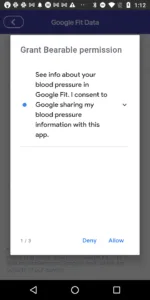
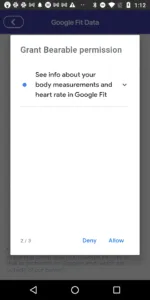
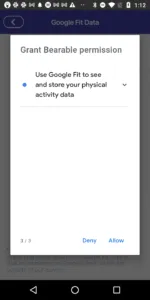
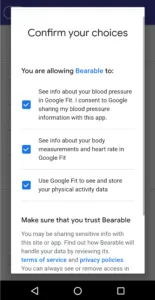
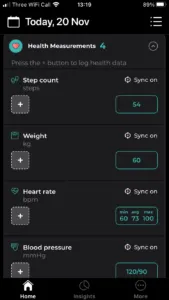
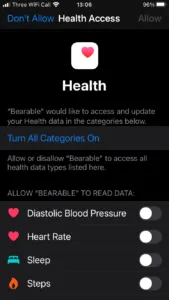
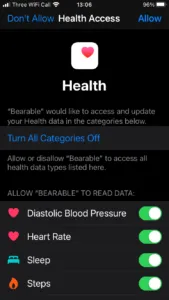
Automatically track your Sleep. Steps, Heart rate, Blood Pressure, and Weight by syncing Bearable with your phone’s native health app. You can also sync other apps and devices with Google Fit or Apple Health, and import some of that data into Bearable too!

To import Sleep, simply press the Track automatically button in the Sleep section and make sure the toggle is on.

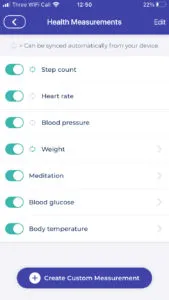
To import anything else  (e.g. Steps and Heart rate), you’ll need to go to the Health Measurements section and tap one of the Sync off buttons for the item you want to activate.

*Click to enlarge the image

🤔 7. Track the way YOU feel

When you enter your Mood in Bearable you’re presented with a list of different emotions. You can click +Add/Edit to adjust the default emotions. You can also create your own emotions to better reflect the way that you feel. For example, instead of feeling Excited, you might feel Over the Moon. 

Tip: you can organise the order of your list using the Edit button (in the top menu) after selecting +Add/Edit.

*Click to enlarge the image

✋ Learn more about the app

    1. Discover more useful resources on our blog to get the most from the app. 
    2. Check out our support blog for answers to common questions.
    3. Post questions on our subreddit or chat with users on our discord server.

Who really makes you happiest? How to track your Social Life and Mood to get useful insights

Ever wondered who really makes you happiest?

Being more mindful about who you hang out with and what impact they have on your mental and even physical health, can help you to make some valuable decisions regarding your social life.

Below I’ll show you how you can set up the app to help you track your mood and your social life, so you can start getting these insights for yourself.

1️⃣ Track Your Family & Friends

Add new factors to an existing Factor Category by navigating to the ‘Add/Edit Factors’ page using the three dots icon (…) in the top right corner of the Other Factors section on your home screen.

Go into the “Social” category, first making sure the toggle on the left is green, meaning it will show up on the homepage.

Using the “Add Factor” box at the top, start adding the specific people you see on a somewhat regular basis.  Or you can be more general, like “With Best Friend” or “With family”.

Image showing how to track the impact of different people on your health.
*Click to enlarge the image

2️⃣ Keep Track Of Your Mood

Try to record your mood at least once each day. 

image showing average mood scores for a single day in Bearable

Open the factors section and simply tap on the people you see each day.  Again, the more times you do this the better your insights will be.

You can also use the toggle at top of the section to enter your factors into more specific time periods for even more accurate statistics  (this works especially well if you’re making two mood entries per day, once in the morning and once in the evening).

image showing how to track different people as factors on the Bearable homepage

3️⃣ See The Results

After just 2-3 weeks of doing this, you will already be able to start seeing some interesting and possibly surprising patterns!  Just think of the insights you’ll be able to get after doing this for a few months or even a year!

Go to the Insights page and Press the “Advanced Factor Insights” button at the bottom of the Mood graph. 

Scroll down to see the Advanced Factor Report and navigate across until you get to the “Social” category.

NoteBearable Premium is required to see these insights. 

image showing the effect of different people on mood

😡 Social Life vs Headaches:

This doesn’t just have to be for Mood either, maybe you’d like to know who gives you the biggest headache!?

Make sure you record your symptoms at least once a day (remember to press the “Mark none for remaining” button to ensure you get the most accurate insights, as we don’t assume you didn’t have a symptom if you don’t make any entry)

An image of symptom tracking tools in Bearable including stress, anxiety, and headache tracking.

Once you’ve been entering your symptoms for a while alongside your Social Life factors, head to the insights page and tap “Headache” or any other symptom you’re interested in (under Symptoms Breakdown).  

image showing a breakdown of changes in symptoms

Just like with Mood, you’ll see a Factor Effect report for each Symptom – scroll across to “Social” and see the effect each person has on your headaches!

Image showing the effect of people on headaches

We’ll be adding many more tips like this to give you some inspiration as to what to track in Bearable and how to make the most out of your insights.  Stay tuned!

✋ Looking For More Info?

    1. Check out our support blog for answers to common questions.
    2. Post questions on our subreddit or chat with users on our discord server.
    3. Take a look at our blog to see how our team member Jesse uses Bearable.

4 Ways to get the most out of your Insights


image showing the correlation between being In Nature and Energy Levels and Average Mood
*Click to enlarge the image

Note. To view this report, visit the Insights tab and rotate your phone.

1. Collect Your First Week Of Data

After a week of using Bearable, you may unearth insights along the lines of; There’s a strong relationship between high Mood scores and spending time in nature.

You’re probably thinking something like; That’s not very insightful!

There’s actually a lot that we can learn from this insight and it underpins the way in which anyone can get the most out of Bearable: The quality of your insights will only be as good as the quality of the data you collect.

So how do you start collecting better data?

🤓 2. Ask Questions About Your Insights

By asking questions about your insights you can begin to uncover what they really mean.

    1. Why is your mood score low when you’re not in nature?
    2. What are the other factors associated with being in nature?
    3. Why does your mood improve so much when you’re in nature?

By asking these questions you can begin using your Insights Reports to try to answer them. For example, you could look at your factor effect on mood report* to uncover the Factors associated with low mood scores.

If you’re not able to find answers, it may be because you need to create some custom Factors that are unique to you.

🔧 3. Refine & Customise Your Factors

Custom Factors allow you to create tracking for almost anything that you want so that you can begin to answer the questions you have about your Insights.

You could begin to track factors associated with being in nature, such as:

    1. Exercise
    2. Screen time
    3. Sleep habits
    4. Who you socialise with
    5. How much you’re working
    6. Weather conditions

Whilst the insight that “spending time in nature has a positive effect on mood score” isn’t a revelation. It may enable you to unearth the more granular factors impacting your mood.

🚀 4. Start Using Your Data IRL

Now that you’re tracking your custom factors, you can begin to identify patterns. You might start to see that:

    1. The amount of exercise you get has a positive impact on your mood.
    2. That your mood is lower when you socialise with certain people.
    3. That weather conditions have a big impact on your mood score.

You could use this information to form new habits that improve your mood. For example, you could test different exercise routines to determine which one has the biggest impact on your mood score.

Or, If you’re tracking factors related to symptoms of a health condition, you could also share the data with a medical professional.

Ultimately, by taking this approach you can begin to make choices – driven by data – to help impact your overall wellbeing.

*If you want to know more about some of the features available to Bearable premium users, you can read about them here.

✋ Looking For More Info?

    1. Check out our support blog for answers to common questions.
    2. Chat with other Bearable users on our discord server.
    3. Take a look at our blog to see how Jesse learns about his health with Bearable.

Remember, if you’re not sure what questions to ask about your insights; We have a dedicated community on Reddit.

The community is a group of other users and people with a wide array of health conditions that may have already found interesting ways to customize the app, question their insights, and improve their Health Outcomes. You can post questions to the community on Reddit AND even search for posts by users with similar goals to you.

Visualising your health data in many forms

Once you’ve made a few entries it might be useful to know all of the ways you can visualize your data with Bearable:

📊 Comparison Graph

One of the best ways to spot patterns is by using our comparison graph.  Access this by rotating your phone on the Insights Page. 

You can then compare your Mood, Symptoms, and Energy Levels to anything else, such as; Sleep, Water Intake and Health Measurements like Steps and Heart Rate (plus any custom measurements you’ve created). 

You can also highlight days with certain Factors (including medication) by pressing the “Select Factor” button in the top menu.  

image showing the effect of sleep on stress
*Click to enlarge the image

🗓️ Calendar

See how your Mood or Symptoms change over time via the Calendar button on the homepage. 

You can highlight days with certain factors here too by pressing the “Select Factor to Highlight” button at the bottom of the page.

image showing a calendar view of mood tracking
*Click to enlarge the image

📝 Timeline

If you want to see your entries listed out in more detail, including things like additional notes, visit the timeline by pressing the 3 horizontal lines in the top menu of the Homepage. 

There is a quick filter at the top of the timeline page for you to immediately just see e.g. only your mood entries.  To type a keyword search and go into more detail you can press the magnifying glass icon.   There is also the option to export these entries by pressing the Share icon in the top menu.

image showing the timeline view of symptoms, moods, meds, and other health tracking in the Bearable interface
*Click to enlarge the image

💎 More detailed insights

Once you’re ready to gain deeper, more detailed insights you can unlock premium

This will give you access to unique charts and correlations, such as the % effect each factor has on your Mood, Symptoms, and Sleep, plus how these change based on time of the day/week.  

You’ll also be able to view reports for individual Symptoms (under Symptoms Breakdown) and Factors (under Factor Count) for more specific insights.

image showing an example of advanced mood reports including an Average Mood Per Day Graph
*Click to enlarge the image
image showing an example of a symptom score report including Associated symptoms and average symptom levels
*Click to enlarge the image

As always feel free to reach out to our community on Reddit or Twitter for more advice, support, and inspiration. 

✋ Looking For More Info?

    1. Check out our support blog for answers to common questions.
    2. Post questions on our subreddit or chat with users on our discord server.
    3. Take a look at our blog to see how Jesse learns about his health with Bearable.

Getting started – Personalising Bearable


Thanks for joining the Bearable community!

I’m James, the founder of the Bearable App.  I’m here to help you on your journey towards reclaiming control over your health and wellbeing.

Here are a few quick tips to help you get started:

🏠 1. Edit your Homepage

Use the “Edit” button at the bottom of your homepage to hide, unhide and reorder the different tracking options in Bearable. Lots of our users suggest starting out by tracking just a few important things and then adding more options over time.

For example, you could begin by tracking just your Mood, Symptoms, and Factors. Then, over time, you could add Sleep, Energy, Nutrition, and Custom Ratings.

📝 2. Add Custom Factors and Categories

Personalize your tracking further by adding new Factors and Categories.  This can be done by clicking the ellipsis menu icon (…) in the top right corner of the Factors section on your Homepage and then tapping the “Add/Edit” button. In time you’ll be able to see how each Factor impacts your Mood, Symptoms, Energy levels, Sleep, and more! 

For example, you could add your friends, colleagues, and family in the Social Category if you’re interested in discovering who really makes you happiest, or perhaps who makes your headaches worse!

❤️ 3. Import your Health Data

Interested in importing health data like Steps, Weight, and Heart rate from your device?  Go to the Health Measurements section and tap “Sync off” next to any item to connect to either Google Fit or Apple Health.  If you choose to sync your Sleep data, this will show up in the Sleep section on your Homepage.  

You can even create your own unique Health Measurements by pressing “Add Health Measurements” at the bottom of the section then “Create Custom Measurement”.   This is just one of our premium features.

I hope these tips help you start to make Bearable more insightful and relevant to you.  I’ll be back with more soon!

💡 Don’t forget to reach out to our community on Reddit or Twitter for more advice, support, and inspiration. 
Using the same Bearable account on multiple devices

For the time being our app is designed to work and sync seamlessly on one device. This is what most of our users require, but we understand that some people could really benefit from being able to sync Bearable on multiple devices.

We do indeed have plans for multi-device capabilities (i.e. instant updates across devices), but this is very complex to implement, hence why you usually only see it done by bigger companies (e.g. Google Docs, etc.).

In the meantime, to make sure you get the best experience possible, please use Bearable on one device. Using multiple devices simultaneously can lead to data conflict issues and thus result in data loss. We plan to make this much clearer to users in the very near future with a warning message when a new device is detected to make sure there is less uncertainty around the issue.

To clarify you can still move permanently to another device, simply by logging out of device A and staying logged in on device B, you just can’t be logged into both simultaneously.

Change units of measurement (e.g. Weight and Temperature)

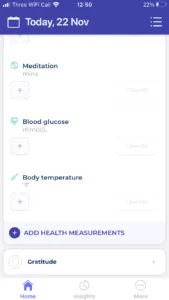
On the homepage, simply click on the “ADD HEALTH MEASUREMENTS” at the bottom of the Health Measurements section.

.     

⚖️ Weight

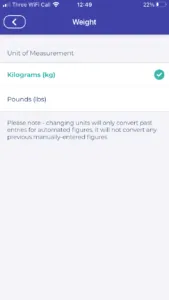
Click on Weight, and you’ll see the option to change from kg (kilograms) to lbs (pounds).  Note that this will not convert any previous manual entries you have made in kilos (and vice versa), it will only convert previous auto-synced entries.

🌡️ Temperature

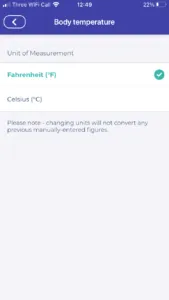
Click on Temperature and you’ll see the option to change from Farenheight to Celcius.  Again, this will not convert any previous manual entries you have made.

🩸 Blood glucose

You can also change Blood glucose from mmol/L to mg/dL.


Still need some help? Get in touch with our Support Team.

Bearable isn’t opening properly anymore

In some very rare cases, users have experienced a constant loading screen or crashing upon opening the app. If closing and reopening Bearable doesn’t solve the issue, then please email us at support@bearable.app detailing exactly what happened and your Bearable Account email address. We’ll then be able to investigate the issue and get it working for you again ASAP.

Sync with other devices & apps (e.g. Samsung Health, Garmin & Fitbit)

We’re currently working on plans to offer direct integrations with devices such as Fitbit & Garmin watches, Oura rings, and apps such as Samsung Health.

BUT In the meantime, we can give you some instructions as to how to link some of these to Google Health Connect and Apple Health:

1. Fitbit / Google Health

For Android & iPhone

⚠️ Note. Google is turning off Fitbit and replacing it with Google Health in August/September 2026. You can learn more about switching from Fitbit to Google Health here.

You can now sync a number of health metrics directly from Fitbt, including; Resting Heart Rate (RHR), Heart Rate Variability (HRV), Sleep, Steps, and weight.

To sync any of these metrics from Fitbit:

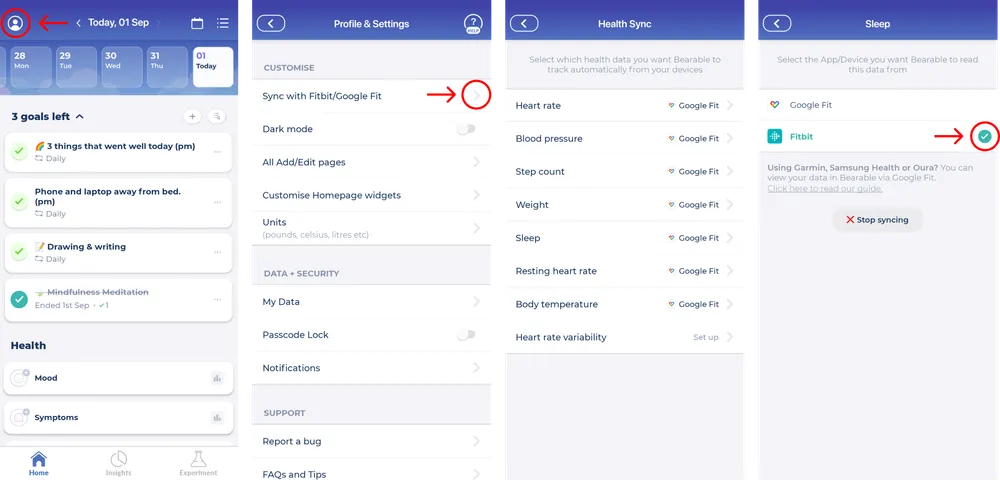
    1. Click the profile icon in the top left-hand corner of your home screen.
    2. Scroll down to the Customise section and click on Sync with Fitbit.
    3. Then tap on any of the metrics you’d like to sync from Fitbit.
    4. You’ll then be able to select Fitbit as the source to begin syncing this data directly into Bearable.
    5. When setting up this integration, you might also be taken to a page within the Fitbit app to finalise the process.

Note. For syncing any metrics that can’t be integrated directly with Bearable:

    • Android users can use the Fit2Fit app and follow their instructions for syncing Fitbit data via GoogleFit.
    • iPhone users can use apps like IFTTT and Sync Solver to sync Fitbit data via AppleHealth.

2. Samsung Health

For Android

Samsung now syncs with Google Health Connect. To learn more about this please read the instructions provided by Samsung here and then view our article about syncing Bearable with Google Health Connect here.

For iPhone

If you want to use a Samsung tracker (such as the Samsung Gear) with an iPhone, you will need to download the Samsung Health App for iPhone.  The Samsung Health App will auto-sync the steps data to Apple Health.  Apple Health is where Bearable will receive your steps data. It’s now also possible to use the 3rd party app HealthSync on iOS.

Note: Health Sync will sync your data 4 times per hour, though you can increase or decrease the syncs per hour to up to 6 times per hour.  Health Sync is free to use for the first week, but after that, you will either have to subscribe to the app or purchase it for a one-time fee.

3. Garmin

For Android

Garmin does not currently sync data to Google Health connect (as of Jan 2025). Instead, you may be able to use a 3rd party app such as HealthSync. Remember, if you sync using the HealthSync app,  you should make sure that you have disabled steps and activity tracking in Google Health Connect or it could lead to some data conflict issues.

Update. There’s news from Android that Google Health Connect should begin working with Garmin, Runna, and Mi Band from June 2025 [link]. To sync data from Google Health Connect into Bearable, you can follow these instructions.

For iPhone

According to Garmin, Garmin Connect Mobile (GCM) version 2.6 and above provides support for the Apple Health Kit.

Once Connect sharing is enabled in Health, the steps data will begin syncing with Apple Health after each successful device sync in Connect Mobile. Please note that, at this time, data is shared with Apple Health while the Connect Mobile app is in the foreground. If the app is closed or sent to the background, the transfer of data will not complete until there has been a successful sync with the device while the Connect Mobile app is open.
 

Follow these steps to enable sharing:

    • Open the Apple Health Kit app.
    • Go to your profile (top right icon).
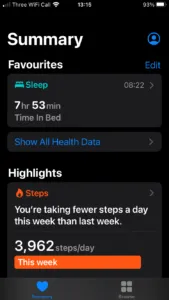
    • Tap Apps
    • Tap Connect
    • Toggle to enable the data you want to collect, e.g. steps.
You should then be sure to fully sync your Garmin tracker with the Connect app before opening and restarting Bearable. (Again, syncing must be completed fully while the Connect app is in the foreground, or your data will not be shared.)


4. Oura

 
For Android
 
It’s relatively simple to connect to Google Health Connect, check out Oura’s website here.
 
 
For iPhone
 
Similarly, you can use the same method to connect Oura pretty easily.  For full instructions check their website.
 
 
Still need some help? Get in touch with our Support Team.

Health Sync not working properly

Here are some instructions to follow for each platform if your synced data, such as; steps, sleep, heart rate etc. are not being correctly uploaded to Bearable.

Android 

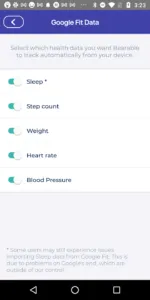
    • First, make sure that the relevant toggles are turned on in Bearable’s Health Sync Page via Settings →  Sync with Google.
Bearable App Syncing Options
Click to enlarge
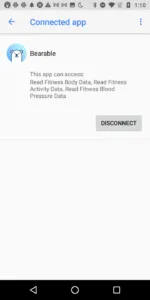
    • Make sure Bearable has the required permissions by opening your Settings App, searching for Health Connect, then tapping on the Health Connect option within the Privacy & Security section, tapping on Health Connect, then tapping on Bearable, and finally enabling all permissions.
Bearable App Google Health Connect Syncing Permissions
Click to enlarge

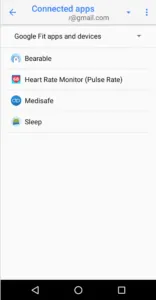
Note: you might have a few email addresses connected to Google Health Connect. Make sure the one listed at the top of this page is the email address you gave permissions to in the Bearable app.

If this is not working then please get in touch via Settings → Help → Report an issue → Syncing to send us an email and your diagnostic info so that we can prioritise and fix the issue for you ASAP.

  •  

iPhone

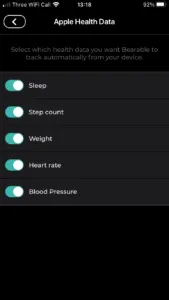
    • First, make sure that the relevant toggles are turned on in Bearable’s Health Sync Page via Settings →  Sync with Apple.


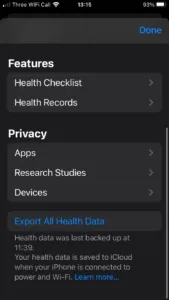
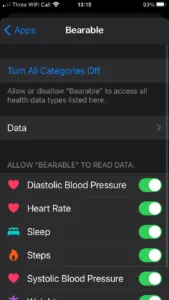
    • Make sure Bearable has the required permissions by opening your Settings app, navigating to Privacy, then Health, and then Bearable. From here, you’ll then have the option to enable permissions for Bearable.


If this is not working then please get in touch via Settings → Help → Report an issue → Syncing to send us an email and your diagnostic info so that we can prioritise and fix the issue for you ASAP.