💡 Please note. This feature is in testing and being rolled out slowly so you might not see it yet.
About Period Tracking with Bearable
Below you will find some information to help you set up Period tracking in Bearable.
We are a little different from other period-tracking apps as our focus is on people with chronic health conditions. Unlike some other period tracking apps we don’t make predictions about your period or symptoms. Our aim is primarily to record your cycles so that you can better understand the impact they might have on your health.
We take privacy extremely seriously. We know how important this information is, especially given the current political climate. All of your information is encrypted and held on servers in Europe. As a UK company, we are bound by strict rules about how we handle your data. You have full control and can delete your data (including from our servers) at any time, from the app. Importantly, as a UK company, we’re not required to have to comply with US criminal subpoenas requesting disclosure of data.
If you have any other questions or concerns don’t hesitate to reach out to support@bearable.app. We would love to hear from you.
Why implement period tracking now?
Period tracking is one of our most requested features and it has been on our roadmap since first building Bearable. It’s a hugely important factor that can help so many of us understand our health better.
We know many users don’t feel safe tracking their periods right now. Period tracking is completely optional in Bearable and if you don’t feel comfortable using this feature, you don’t have to.
However, we’ve taken steps to make sure this data is as secure as possible.
-
-
We don’t store this data locally on your device.
-
We are a UK company, meaning we have much stricter data privacy laws. We will never share your data. We are not required to have to comply with US criminal subpoenas requesting disclosure of data.
-
The data is stored on European servers and is encrypted, meaning our server providers cannot read the data.
-
You can delete your cycle data at any time (including from our servers) from within the app. Just go to Settings > My Data > Delete my period tracking data
-
You can set an additional Passcode Lock from the settings menu, a four-digit PIN which can prevent anyone from accessing the app, even when they have access to your device.
How do I track my cycles in Bearable?
You can simply log when you menstruate and Bearable will estimate the phases of your cycle based on your input.
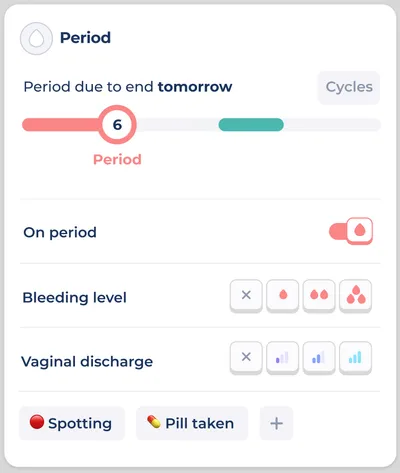
There is a toggle called ‘On period’. Switching this on will start a new cycle. It will remain on for the duration of your expected period length, after which it will automatically toggle off.
If your period ends earlier than estimated you can manually turn this toggle off again. If it lasts for longer than usual you can toggle it on for the extra days.
💡 Note. if you have irregular cycles you will mark this manually.
If you’re tracking ovulation, for example using basal body temperature or ovulation tests, you can manually mark the day(s) on which ovulation occurred and we’ll update the cycle. Just toggle ‘Ovulation confirmed’.
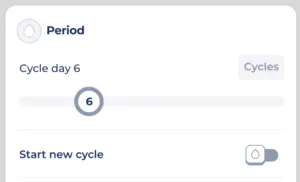
If you don’t menstruate, you can still track your cycle manually, by toggling “Start new cycle” whenever you feel a new cycle is beginning.
Setting up your cycle.
When you first activate the Period section you should see a button to set up your cycle.
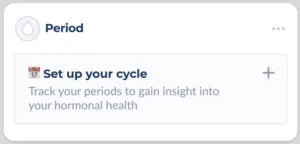
If you ever need to change these settings you can open the ellipsis (…) menu at the top right of the Period section and press “Set up cycle”.
Do you menstruate?

If you usually menstruate mark this as yes.
You might not menstruate if you have had a hysterectomy if you are on some types of birth control, if you’re pregnant, or because a health condition prevents it.
If you don’t menstruate you’ll see the option to Track manual cycles, which lets you manually toggle when each new cycle starts. You can also use this to track hormonal cycles if you are a transgender man or woman.

Irregular cycle mode?

Many people have unpredictable cycles and estimates will not feel useful. Switching on irregular cycle mode will remove any estimates and let you mark manually.
Cycle length

Press the box to enter your cycle length. This is the time between one period starting and the next period starting. Often this will be between 21-35 days but it can vary depending on the person.
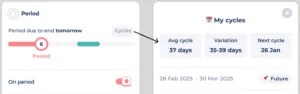
You can always amend this later, so if you don’t know your cycle length you can use a default value of 28 days. After a few cycles, you can view your average cycle length by pressing on the Cycles button.
Period length

This is how many days your menstrual bleeding usually lasts. You can mark which days your period actually happened using the ‘On period’ toggle when logging, so if this varies a lot you can either put in an average length or turn on irregular cycle mode.
When did your last period start?

Enter your last period start date if you know it. If not, you can leave this blank and just start your period when the next one occurs.
Do you ovulate?

Ovulation is the process of releasing an egg from an ovary. If you regularly ovulate, even if this does not happen every cycle, you can turn on this toggle to show a possible window for ovulation. This shows dates when ovulation might typically occur. If you’d rather not see this you can turn off ovulation and just track periods.
Please note, Bearable is not a fertility tracker and the ovulation window is only there to provide a helpful marker of the phases of your period, in order to better understand how those phases might impact your health.
If you do track ovulation you’ll see an option to Track ovulation manually. You might want to do this if you’re tracking your ovulation, for example using ovulation tests and want a more accurate estimate of when ovulation might have occurred. This will set the ovulation window to be the dates you confirmed manually (between the first and last day you mark each cycle).

How we calculate your cycle.
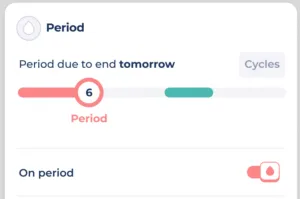
Unlike some other period trackers we don’t predict your future periods. We will show you estimated future dates simply based on your cycle length.
For example, if your cycle is 30 days and your last period began on 1st January, we will presume your next cycle to begin on the 31st January.
We will not presume the next cycle to have started until you manually confirm that this is the case by switching the “On period” toggle.
For the phases of your cycle, we will presume your period to last its typical length, unless you mark otherwise.
For the ovulation window, we will assume this to occur roughly 14 days before the expected end of your cycle. This is of course only an estimate and will not be the case for all users. There is an option to manually mark ovulation if you want to track this yourself.
We provide an ovulation window, which is an estimated range when ovulation might occur. Note, this is not the same as the “fertile window” you might see in other apps.
What are the phases of the cycle?
We split cycles into four phases. Not all users will have all phases, as it depends on your specific setup choices.
These phases are estimates and aimed to help understand the impact of different parts of your cycle on your health outcomes.
-
-
The period phase, if you have one, is the first day of menstrual bleeding until the last. Not all users menstruate and you can turn this off.
-
The follicular phase is the first stage of the menstrual cycle. We count this from the last day of your period until ovulation (if it occurs).
-
The ovulation window is a period of time in which an egg may be released from an ovary. This is just an estimate to help understand how different parts of the cycle may impact your health outcomes. It should not be relied on for tracking fertility. Not all users will ovulate and you can turn this off.
-
The luteal phase lasts from the end of the ovulation window until the start of your next period.
For insights, we also show Week before period, the seven days preceding your period.
Viewing your cycles.
You can view the stage of your cycle in the Period section. The diagram shows the current cycle and the phases.
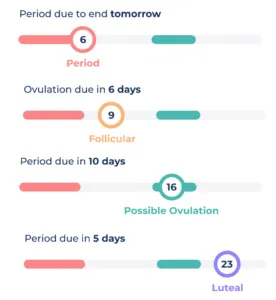
Pressing on ‘Cycles’ to the right of the diagram will bring up your historical cycles, along with the average length and the variation.
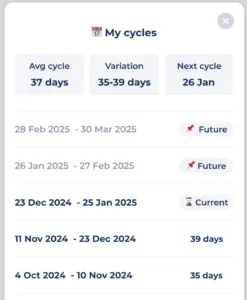
You can also view this by pressing on the Ellipsis (…) at the top right of the Period tracking section and pressing ‘Cycles + Stats’.
Getting insights into your cycles.
We use the phases of the cycle as factors, so that you can correlate them with your health outcomes.
To see correlations go to the Impacts tab. At the top of the screen, where it says “How factors” press the word Factors to bring up the selection menu. You can now select Period factors.
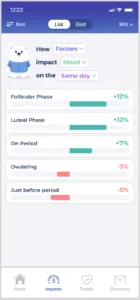
This will show any custom period factors, alongside the phases of your cycle.
For example, if the Follicular phase is correlated with a +20% rise in symptoms, it means that your recorded symptom scores were 20% higher when you were in that phase of your cycle, compared to other phases of the cycle.
Remember, correlation does not imply causation. Treat these as potential impacts to be explored.
Creating and moving custom period factors.
You can create custom period factors. Press the ‘+’ icon at the bottom of the Period section.
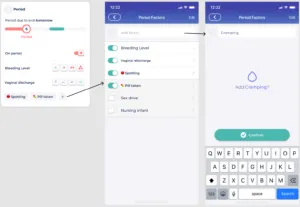
Type a factor into the text box at the top and press ‘Confirm’
You can set binary factors (yes or no) or scale factors, like low, medium, and high.
You can also move factors to this section. If you type the name of an existing factor in this box it will give you the option you move it to this section.
Seeing your phases with the calendar.
The Period calendar will appear if you have the Period section active.
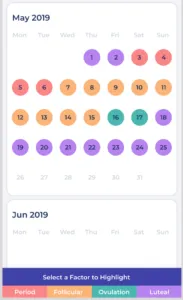
Go to the calendar by pressing the date at the top of the screen and then selecting the Period tab.
You can highlight other factors to help show when they typically occur with your period phases.
👋 Still have questions?
Let us know by contacting support@bearable.app and a member of the Bearable team can help you with anything you need.