Sync with Google Health Connect or Apple Health

Google Health Connect:

IMPORTANT – Make sure you choose the correct email address on the initial “Choose an account” screen i.e. the one that you are signed into Google Health Connect with, as this is where your data (e.g steps, heart rate etc.) will be pulled from.

    • Navigate to your Settings page using the icon in the top left-hand corner of your home screen.
    • Scroll down to the Customise section
    • Tap on Sync with Fitbit / Google Fit
    • Tap on each of the health metrics you’d like to sync from Health Connect e.g. Heart Rate
    • Then select Health Connect from the options on the following screen.
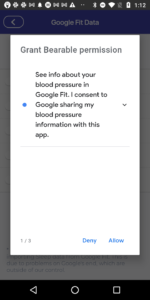
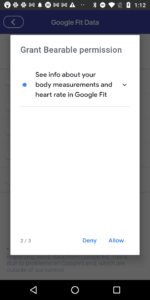
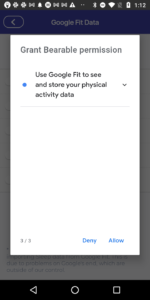
    • You’ll then see a few permissions screens. Make sure to press “Allow” for all of these.
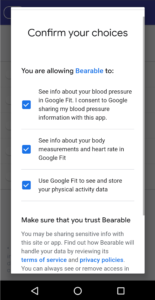
    • Then confirm your selections on the final screen.
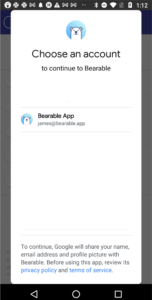
 

  • You can confirm that Bearable is now properly synced by opening Google fit > Click on the profile tab in the bottom menu > settings button > manage connected apps.  You should see Bearable there.  Click on Bearable to make sure all permissions have been given.  It should look like this:
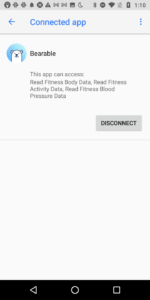
  • Everything will then be automatically turned on. You can then manually turn off the toggles for data you don’t want Bearable to fetch for Health connect.
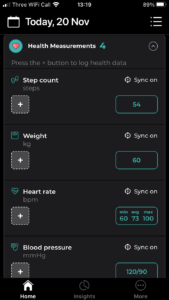
  • Go back to the homepage and look for the Health Measurements section.  You’ll now see all of your synced data being shown. If not, restart the app and it should show up after being nudged into action again.
Apple Health

    • Navigate to your ‘Profile’ in the top left-hand corner of the home screen.
    • Click on “Apple Health data”
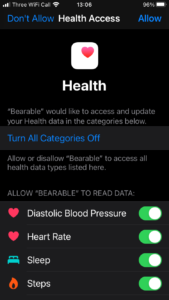
    • You’ll be greeted with a permission screen.  Turn on the toggles for the data you want to sync.
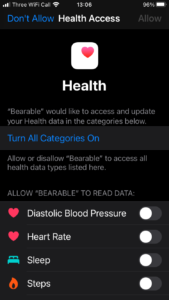
  •  You can confirm that Bearable is now properly synced by opening Apple Health Kit > Click your profile icon (top right) > Apps > Bearable should be there.  You can click here to see which permissions are set up.
  • These will then automatically be turned on in Bearable.
  • Go back to the homepage and look for the Health Measurements section.  You’ll now see all of your synced data being shown. If not, restart the app and it should show up after being nudged into action again.

Note – These instructions are for setting up sync for the first time.  If you have already denied permissions the first time, you may have to uninstall Bearable and reinstall to be asked for those permissions again (on Apple).  On Google you will need to uninstall Bearable and disconnect Bearable from your list of connected apps in Google Fit – then when you reinstall Bearable you should be asked for the permissions again.

Still need some help? Get in touch with our Support Team.
Can I change to 12h clock format?

We’ve had a lot of requests from the lovely folk across the pond to change to a 12-hour format, instead of 24-hour military time. 

It’s actually hard to display extra text (i.e am and pm) in such a small space without making it ineligible, given our current designs,  hence why we don’t have this yet.   We also have times in a lot of different places, so it would be a big redesign job to sort this out optimally.

However, we are already considering the best way to make a 12-hour option in the future.  Thanks for your patience!

I’m not receiving reminders

We understand that some of you are having issues receiving our notifications.

Either:

    1. You are not receiving the reminders your set up at all or…
    2. You only receive reminders when you open the app, at which point they all come flooding in at once.

If you experience problems with push notifications the reason usually lies in restrictions imposed by the device maker. Almost 95% of reminder problems are happening on Samsung devices, so below we have included a few options to try to fix this:

    1. First, make sure it’s not just a temporary hiccup and reboot your phone.
    2. Review your app’s notification settings – make sure you have given Bearable the relevant permissions to allow it to send you reminders. This might be found via Settings > Apps & Notifications > [App name] > Notifications.
    3. There may be some battery-saving settings or background restrictions switched on.  Follow the instructions listed here: https://dontkillmyapp.com/samsung
    4. If none of the above work, here is something else that has worked for some people (note: this is not possible on all devices): Go to ‘settings’ > ‘apps’ > press the 3 dots for the menu > chose ‘special access’. In the special access menu, choose the option called Notification Access. Turn off “Clean Master” and “Antivirus” and any other possible security/antivirus apps that may have been controlling the notifications.

Some other things that might help you to resolve this.

    • Check that you don’t have Do Not Disturb or Bedtime mode turned on.
    • Check that Battery Saver mode is not active.
    • Make sure Bearable is running on the latest version.
    • Make sure your phone’s System doesn’t need updating.
    • Check your Mobile Data Usage settings.

For more tips like these and for advice on how to solve them take a quick look at this article about other things that might be affecting how you receive reminders and notifications.

Still need some help? Get in touch with our Support Team.